
To upload an Excel file into Pacemkr, it has to follow a specific format. This tutorial guides you to ensure that Pacemkr understands your file. To follow along, you can download this sample Excel spreadsheet.
Structure of the file
To correctly structure a file for import, it is important to start with a line that defines how the data is organized in the file. The columns of this first are grouped into three categories:
These columns are grouped into three categories:
- Information about the work item
- Workflow dates
- Properties of the work item
Information about the work item
To identify a work item, Pacemkr needs two mandatory columns and one optional column.
| Title | Description |
|---|---|
| ID | The unique identifier of the work item |
| Link (optional) | A URL of the work item in your tracking system (if you have one) |
| Title | A summary, short description, or title of the work item. |
Workflow dates
After these first 3 columns, you then add the columns of your workflow. Suppose we have the following workflow:

Then you would have the following columns in the spreadsheet:
| ID | Link | Title | Backlog | Development | Testing | Done |
|---|---|---|---|---|---|---|
| 0001 | Url | Item #2 | 2024/10/15 | 2024/10/17 | 2024/10/20 | 2024/10/25 |
| 0002 | Url | Item #2 | 2024/10/17 | 2024/10/20 |
As for the values in these columns, you put the date at which your work item entered each column, leaving it blank for columns it didn’t go into or hasn’t gone into yet.
The dates should not include the time. At this time, Pacemkr only supports dates.
Pacemkr supports the following date formats as well as the ‘-‘ or ‘/’ separator
- YYYYMMDD
- YYYYDDMM
- DDMMYYYY
- MMDDYYYY
Properties of the work item
After the workflow columns, you can add additional columns that will be used as filters. They are called the ‘property’ columns. Here are a couple of well-known and used filters:
| Name | Description |
|---|---|
| Priority | Filter by the types of priorities you have |
| Type | You can have the opportunity to filter on a specific PBI type. |
| Effort | If your Scrum team is pointing your stories, you can add the estimation value here. In another post, I will explain how to compare the effort versus the actual cycle time. |
Once your Excel spreadsheet is ready, you can load it in the Excel wizard
Extra features
While the content of the Excel file is much more limited than an project management software, there are a few extra features Pacemkr supports to aliviate the fact that this is a spreadsheet
Handling of multiple values
When extracting the data from an external source, a list of values may be saved within a single cell.
For example, if a work item has 3 labels (‘ABC’, ‘XYZ’ and ‘DEF’), they can be exported into a single cell as ABC,XYZ,DEF.
As you probably want to filter on each of these labels, you have to inform Pacemkr of this. To do so, add the suffix (m) at the end of the column title. In the following example, this is demonstrated with column ‘Labels’ which has the suffix (m).
| ID | Link | Title | Backlog | Development | Testing | Done | Labels(m) |
|---|---|---|---|---|---|---|---|
| 0001 | Url | Item #2 | 2024/10/15 | 2024/10/17 | 2024/10/20 | 2024/10/25 | ABC,DEF |
| 0002 | Url | Item #2 | 2024/10/17 | 2024/10/20 |
Once loaded in Pacemkr, there will be two filters for the Labels property: ABC and DEF.
Troubleshooting
Pacemkr offers an intuitive and dynamic experience for importing Excel files. While the process is straightforward, the quality of the data inside the file can lead to some issues. To prevent those issues, Pacemkr has a set of guardrails to prevent issues when analyzing its charts.
The following sections cover the issues that can be encountered in the wizard and how to solve them.
Step 1 – Import the Excel file
The wizard will do some upfront checks to avoid any issues during the import. This section explains the checks that are done and how to address them.
Uploading an empty file
Believe us, it can happen. If your Excel file is created by an automated process, it can sometimes crash and produce an empty Excel file. In this situation, Pacemkr displays the following error message at the bottom of the screen:

To fix this error, simply upload another file and check why your file is empty.
Uploading a file with only the headers
When the Excel file is created by an automated process, it can break along the way. As a result, an Excel file with only the names of the columns will be generated. If this happens, Pacemkr prints out the following error message after the file has been uploaded.

To fix this error, upload another file and check why your file is incomplete.
Uploading a file without a column named Title
To display the information of your work items in Pacemkr, a column with a text description of your work items is required. Without this column, it will be hard to drill down on Pacemkr’s charts.
After loading your file, Pacemkr will warn you of this with the following warning message.

The message tells you to go to the configuration screen of the wizard. On this screen, you will be able to indicate which column serves as the ‘Title’ of each work item. Most of the time, the file has a column for the title of the work item, but it has a different name.
The file has invalid lines
After being loaded, Pacemkr does a first check of your data to warn you of any obvious issues with it. It can detect two types of lines:
- Empty lines: Lines that have no dates or are simply empty
- Backward lines: Lines that have dates that go backward in time
If you have a file with this kind of data, Pacemkr prints out a warning similar to the following screenshot:

This gives you the possibility of reviewing your data before analysing it in Pacemkr. This way, it avoids you the trouble of looking for specific work items that are not there because they were detected as invalid by Pacemkr.
Step 2 – Configuring your columns
In some situations, it can be recommended to review how columns in the file will be interpreted. This section explains the different error messages that can be encountered and how to fix them.
Missing ID column
To quickly search and find a work item in Pacemkr, it requires a unique identifier, or ID. This ID is specified in a column. If no column has been assigned as the ID column, Pacemkr displays the following error message:

To fix this error, assign the ID column type to a column that should have unique values.
Missing Title column
To display the work items correctly, Pacemkr requires a column that contains a short description or summary of the work item. This is called the ‘Title’ column. If the uploaded file did not contain a column with that name, Pacemkr displays the following error message:

To fix this error, identify a column that contains the summary of the work items and assign it the Name column type.
Not enough workflow stages
To do its calculations correctly, Pacemkr needs at a bare minimum 2 columns that have dates. These columns are called ‘Workflow stages’. If you don’t have at least two columns with this type, Pacemkr shows this error message:

To fix this error, assign the column type ‘Workflow stage’ to at least two columns.
Column-specific errors
While the previous error messages are directed at making sure the mandatory columns are set, Pacemkr provides additional checks when you select a type for each column.
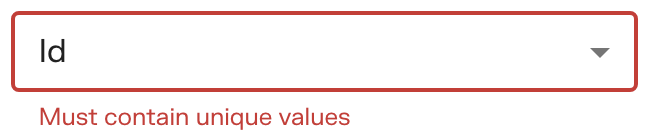
Duplicated IDs
When the user selects the column type ‘ID’ for a column, Pacemkr checks the sample data for duplicates. As Pacemkr cannot function properly with multiple work items with the same ID, it shows the following error message under the column type.
Link without URLs
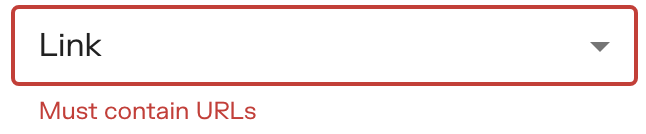
If the user selects the column type ‘Link’ for a column, but the sample data are not URLs, Pacemkr displays a small error message underneath this column
No dates
Finally, if the user selects the ‘Workflow stage’ column type but the sample data doesn’t contain dates, Pacemkr displays an error message under the column type indicating that the sample data are not dates.

Conclusion
The goal of this tutorial was to help you configure and load your data fast and without friction. Although Pacemkr wizard simplifies this process, errors in your data can prevent you from quickly loading your data. This is why Pacemkr shows those errors and how to remediate each error.
 English
  French